
Running out of storage on an Android phone can be frustrating, especially when you want to install a new app, download a video, or take an important photo. You might even see a storage warning when you believe there is nothing left to delete. This happens because apps, cached files, downloads, photos, videos, and system data can gradually use up your phone’s available space.
Learning how to free up internal storage on Android can help you solve this problem without deleting everything you have saved. You do not always need to buy a new phone or install a storage-cleaning app. In many cases, a few changes in your phone’s settings can make a noticeable difference.
In this guide, you will learn practical ways to free up storage, identify large files, manage apps, and avoid accidentally losing important data.
1. Check What Is Using Your Android Storage
Before deleting anything, find out which files or apps are taking up the most space. Otherwise, you might spend time removing small files while a few large videos or applications continue to occupy most of your storage.
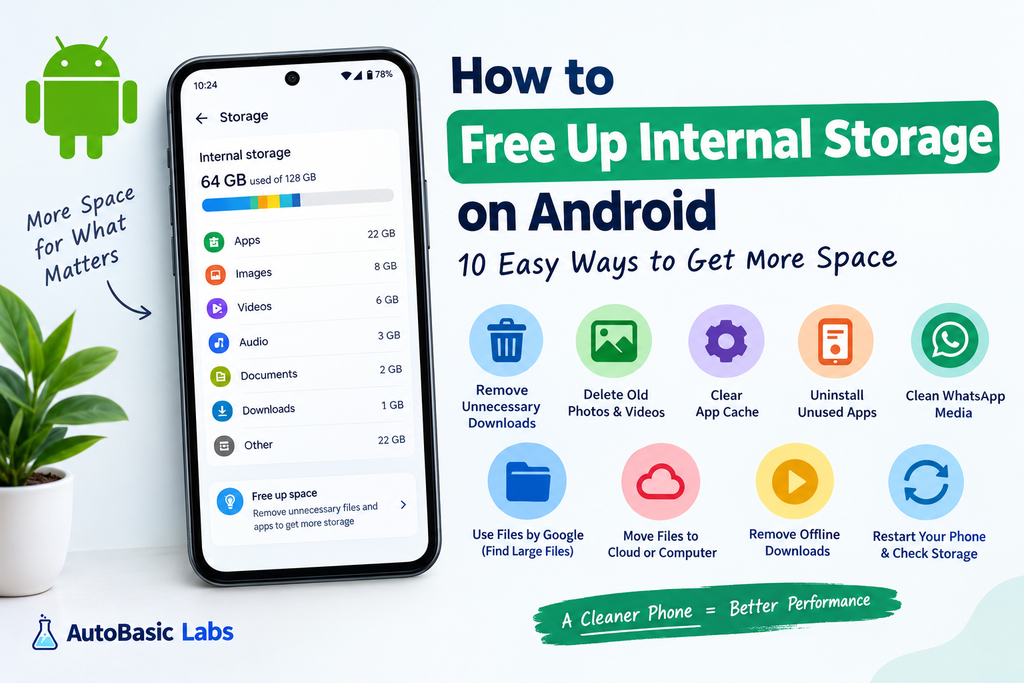
Open Settings on your Android phone and look for Storage. Depending on the manufacturer, the option may be under Battery and device care, Device care, or another similarly named section.
You will usually see categories such as apps, images, videos, audio, documents, and system files. The exact layout varies between Android versions and phone brands.
Check these categories carefully. If videos are using several gigabytes, managing your video collection may be more effective than clearing the cache of multiple small apps.
This first step makes it easier to decide how to free up internal storage on Android without removing files you actually need.
2. Delete Unnecessary Downloads
Downloaded files are easy to forget. A document downloaded for work, an old PDF, a large video, or an installation file may remain on your phone long after you have finished using it.
To review your downloads:
- Open the Files app or your phone’s file manager.
- Select Downloads.
- Sort the files by size if that option is available.
- Open unfamiliar files before deciding whether to delete them.
- Remove files you no longer need.
Pay special attention to large video files and repeated downloads. These can take up a surprising amount of space.
Remember that deleting a file from the Downloads folder may permanently remove it, depending on your file manager. If a document is important, move it to cloud storage or another safe location first.
3. Remove Unnecessary Photos and Videos
Photos and videos are among the most common reasons Android phones run out of storage. Modern phone cameras can produce large image files, while high-resolution videos may occupy hundreds of megabytes or more.
Start by opening your gallery and reviewing older recordings, screen recordings, duplicate pictures, and videos you no longer need.
If you want to keep your memories, back them up before removing local copies. Google Photos offers backup features, but you should confirm that the backup has finished and that the correct Google account is being used.
If your photos are backed up, Google Photos may offer a feature such as Free up space. This can remove eligible local copies that have already been backed up.
Be careful: deleting pictures directly from a gallery or cloud photo app can have different effects depending on the application and its sync settings. Read the confirmation message before proceeding.
For people who regularly record videos, reviewing large files once a month can help prevent storage problems from returning.
4. Clear App Cache Without Removing Important Data
Cached files are temporary data that applications store to help certain content load faster. Browsers, social media apps, and streaming services can accumulate considerable cache over time.
To clear an app’s cache:
- Open Settings.
- Select Apps.
- Choose the application you want to check.
- Open Storage or Storage and cache.
- Tap Clear cache.
The names of these options may vary by device.
Do not confuse Clear cache with Clear storage or Clear data. Clearing the cache normally removes temporary files. Clearing storage or data can remove downloaded content, settings, and locally stored information. Some apps may also require you to sign in again.
You do not need to clear every app’s cache every day. Start with applications that use unusually large amounts of storage. Also remember that cached files may return as you continue using those apps.
5. Uninstall Apps You No Longer Use
Many people install applications for a particular task and forget about them afterward. Games, editing tools, shopping apps, and other unused applications can consume valuable internal storage.
Open Settings, go to Apps, and review the installed applications. Check the storage used by each app before deciding what to remove.
Uninstall applications that you no longer need, but be cautious with apps that contain important offline information. Some games, note-taking tools, and editing apps may keep projects or downloads locally.
If your Android phone supports an option to archive or automatically remove unused apps, you may be able to use it instead of completely uninstalling selected apps. Availability depends on the device and software version.
Removing a few large, unused applications can be more effective than deleting dozens of small files.
6. Check WhatsApp and Other Messaging Apps
Messaging applications can gradually fill your phone with photos, videos, voice messages, documents, and forwarded media.
WhatsApp is worth checking if you frequently receive videos or participate in active group chats.
Open WhatsApp and look for Settings > Storage and data > Manage storage. The exact interface may change with app updates.
Review large files and media forwarded many times. Delete only the items you no longer need, and save important documents or personal videos somewhere safe first.
You can also review automatic media downloads in WhatsApp’s settings. Reducing automatic downloads can prevent unnecessary photos and videos from being saved to your device in the future.
Other messaging apps may have their own storage-management tools. Check them individually rather than assuming every app stores files in the same location.
7. Use Files by Google to Find Large and Unwanted Files
If your phone does not make it easy to identify unnecessary files, Files by Google can be a useful option on supported devices.
The app may offer suggestions for deleting large files, duplicate items, old downloads, or other content that you no longer need. The available suggestions depend on the files present on your device.
Open the app and review its cleanup recommendations. Read each suggestion carefully before confirming a deletion.
Avoid approving every recommendation automatically. A large video or document may be important even if you have not opened it recently.
You also do not need several third-party cleaning applications. Some cleaning apps provide little benefit, show excessive advertisements, or request permissions that are unnecessary for basic storage management.
For most users, the built-in Android storage settings and a reputable file manager are a sensible starting point.
8. Move Suitable Files to Cloud Storage or a Computer
Sometimes, you have already removed unnecessary files but still need more space. In that situation, moving large files elsewhere may be a better solution.
You can transfer photos, videos, and documents to a computer using a USB cable. Alternatively, cloud storage services can keep files accessible without requiring every file to remain downloaded on your phone.
Before deleting local copies, confirm that the transfer or backup has completed successfully. Open a few files from the destination to make sure they work.
Cloud services may have storage limits, subscription fees, or internet requirements. Files that are available only online may also be harder to access when you have no connection.
If your phone supports a microSD card, you may be able to move certain files to it. However, not every Android phone has a card slot, and not every app or file can be moved to external storage.
9. Delete Offline Downloads From Streaming Apps
Music, video, and entertainment applications often allow users to download content for offline viewing or listening. These downloads can quietly use several gigabytes of internal storage.
Open the apps you use regularly and look for their Downloads or Offline content sections.
Remove films, episodes, playlists, podcasts, and other content you have already finished using. If you travel frequently, keep only the downloads you expect to need.
Some apps store downloads in protected folders that cannot be managed easily through a normal file manager. In those cases, remove the content from within the application itself.
Clearing an app’s cache does not necessarily remove its offline downloads, so check both when trying to recover space.
10. Restart Your Phone and Check Storage Again
After removing files and applications, restart your Android phone if the available storage does not appear to update correctly.
Then return to Settings and open Storage to review the new figures.
If storage is still nearly full, look for large applications, offline downloads, messaging media, and categories labelled Other or System. The way Android reports system and temporary data differs between devices, and some of it cannot be removed manually.
Do not delete unfamiliar folders or system files just because they look large. Removing the wrong files can cause apps to malfunction or result in lost information.
If the storage figures remain unusually high after a careful cleanup, check for software updates and consult your phone manufacturer’s support guidance.
Why Does Android Storage Fill Up So Quickly?
Storage problems usually develop gradually rather than overnight. Several everyday activities contribute to the issue:
- App updates: Applications may need extra space while installing updates.
- Camera recordings: High-resolution photos and videos require more storage.
- Social media: Browsing and watching media can create cached files.
- Messaging apps: Automatically downloaded attachments accumulate over time.
- Offline content: Music, maps, and videos remain stored until removed.
- App data: Games and other applications may save settings, projects, and downloaded content locally.
Understanding these causes makes it easier to prevent the same problem from happening again.
How to Keep Your Android Storage Free in the Future
Once you have recovered some space, develop a simple maintenance routine. Review your Downloads folder every few weeks, remove old offline videos, and check which applications use the most storage.
Turn off automatic media downloads in messaging apps where appropriate. Back up important photos regularly, and uninstall applications you no longer use.
It is also sensible to leave some free space available rather than filling your phone completely. Android needs working space for updates, temporary files, and everyday tasks. The amount required depends on your device and the update being installed.
You do not need to clean your phone constantly. A quick monthly review is often enough to catch unnecessary files before they become a problem.
Final Thoughts
Learning how to free up internal storage on Android is mainly about finding the right files to remove, rather than deleting everything on your phone. Start by checking your storage settings, then review downloads, photos, videos, app cache, messaging media, and unused applications.
Always protect important files before deleting them, and avoid clearing app data unless you understand what will be removed. If you manage downloads and backups regularly, you can reduce storage warnings and keep your Android phone ready for the things that matter.
At AutoBasic Labs, our goal is to make everyday technology easier to understand. Try these steps one at a time, check your available space afterward, and choose the methods that work best for your device.