
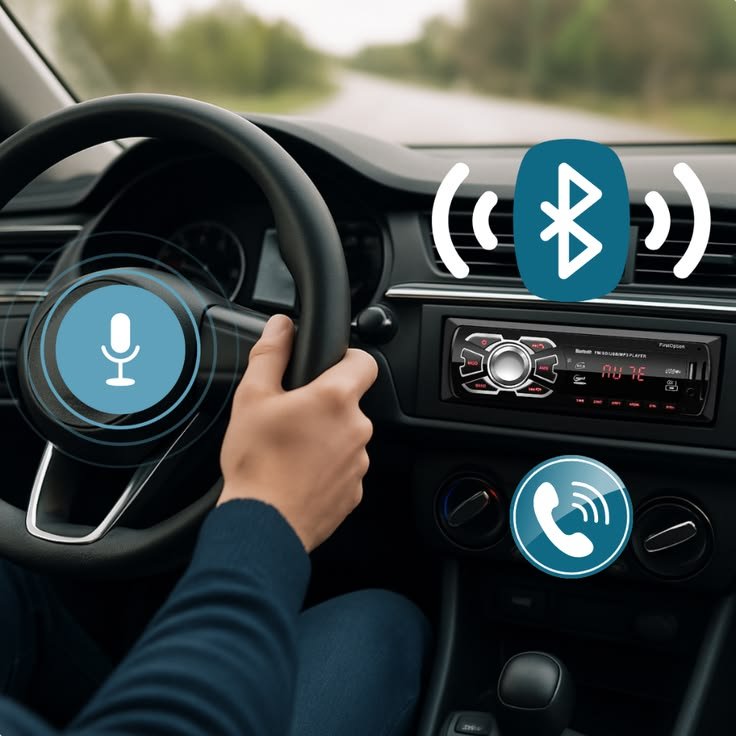
Are you trying to connect your smartphone to your car, but Bluetooth refuses to work? Whether you want to listen to music, make hands-free calls, or enjoy a more convenient driving experience, a connection problem can quickly become frustrating.
The good news is that Bluetooth not connecting to car is a common problem, and you can often fix it without visiting a mechanic. The issue may be caused by incorrect Bluetooth settings, outdated software, old pairing information, or a temporary problem with your car’s infotainment system.
In this guide, AutoBasic Labs explains the most common reasons behind car Bluetooth problems and provides 10 practical solutions to help you reconnect your phone. These steps can help whether you use an iPhone, Samsung Galaxy, Google Pixel, or another compatible smartphone.
Why Is Bluetooth Not Connecting to Car?
Before trying different solutions, it helps to understand why your phone and car are having trouble connecting.
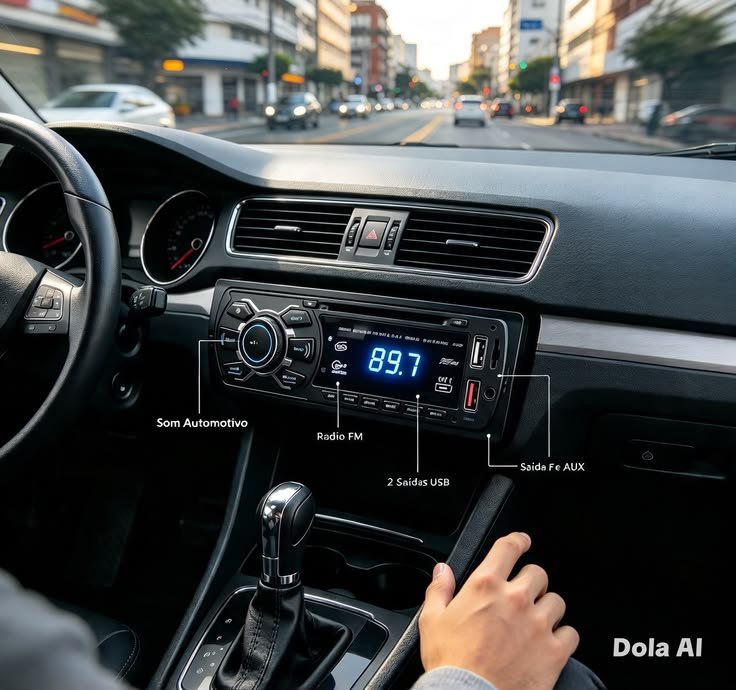
Some common causes include:
- Bluetooth is disabled on your phone.
- Your car is not in pairing mode.
- Your phone is connected to another Bluetooth device.
- Old pairing information is causing connection errors.
- Your car has reached its saved-device limit.
- Your smartphone or infotainment software needs an update.
- Your phone connects, but Bluetooth audio is disabled.
- Your vehicle’s system has a temporary software glitch.
Identifying the cause can help you choose the right solution instead of wasting time trying random fixes.
Bluetooth Not Connecting to Car? Check These Things First
Before moving to advanced troubleshooting, make sure Bluetooth is enabled on your phone and your car’s infotainment system is switched on. Park your vehicle safely before changing any settings.
Also, keep your phone close to the car’s infotainment system during pairing. If the problem started after connecting another device or updating your phone, mention that when investigating the cause.
10 Ways to Fix Bluetooth Not Connecting to Car
1. Turn Bluetooth Off and On Again
One of the easiest ways to resolve a Bluetooth connection problem is to restart Bluetooth on your phone.
Follow these steps:
- Open Settings on your smartphone.
- Select Bluetooth.
- Turn Bluetooth off.
- Wait approximately 10–15 seconds.
- Turn Bluetooth on again.
- Open your car’s Bluetooth menu and try connecting.
This simple method can resolve temporary connection errors without changing your other settings.
2. Restart Your Phone and Car Infotainment System
Sometimes, a temporary software glitch prevents your phone and car from communicating properly.
Restart your smartphone first. If your vehicle’s manual provides instructions for restarting its infotainment system, follow those instructions as well.
Once both devices are ready, try connecting again.
Avoid disconnecting your car battery just to restart Bluetooth, as this may affect other vehicle systems or settings.
3. Forget Your Car and Pair It Again
If your phone detects your car but refuses to connect, the saved pairing information may be causing the problem.
Here’s how to create a fresh connection:
- Open Bluetooth settings on your phone.
- Find your car in the paired-device list.
- Select the settings icon beside the car’s name.
- Tap Forget, Unpair, or Remove Device.
- Remove your phone from the car’s saved Bluetooth list if necessary.
- Put the car into pairing mode.
- Select your car on your phone and complete the pairing process.
Confirm the pairing code if one appears.
This solution is particularly useful when Bluetooth was working normally but suddenly stopped connecting.
4. Put Your Car Into Pairing Mode
Your phone may not find your vehicle because the car’s Bluetooth system is not discoverable.
Depending on your vehicle, open the Phone, Bluetooth, Connections, or Add Device menu. Select the option to pair a new phone.
Then open Bluetooth settings on your smartphone and check the available devices list.
Some cars only allow new devices to pair when the vehicle is parked. If your car does not appear, consult the owner’s manual for the correct procedure.
5. Disconnect Other Bluetooth Devices
Your smartphone may be trying to connect to wireless earbuds, a smartwatch, or another previously paired device. Your car may also have a limit on the number of saved phones.
Temporarily disconnect unused Bluetooth accessories and remove old phones from your car’s saved-device list if it is full.
Try connecting your smartphone again.
If another compatible phone connects successfully, the issue may be related to your original phone’s settings or compatibility.
6. Check Bluetooth Audio Settings
What if your phone connects to the car, but you cannot hear music?
In this situation, pairing may be working correctly, but your audio settings could be preventing sound from playing.
Open Bluetooth settings on your phone and select your car. Check whether Media Audio and Phone Calls are enabled, if these options are available.
Next, check the audio source on your car’s dashboard. Select Bluetooth Audio rather than radio, USB, or another input.
If calls work but music does not, focus on the media audio settings. If music works but calls do not, check the phone-call audio settings.
7. Update Your Smartphone Software
Outdated software can sometimes create compatibility problems between your phone and your car.
For iPhone: Open Settings, select General, and tap Software Update.
For Android: Open Settings and look for System Update or Software Update. The exact menu varies by manufacturer.
Install available updates when appropriate, following the manufacturer’s instructions.
You can also check whether your vehicle manufacturer provides an infotainment software update for your specific car model.
8. Check Your Car’s Bluetooth Compatibility
Not every vehicle supports every smartphone feature in the same way.
Older vehicles may support hands-free calls but have limited support for music streaming. Some infotainment systems may also have compatibility restrictions.
Check your owner’s manual or your vehicle manufacturer’s compatibility information.
Remember that Bluetooth, Apple CarPlay, and Android Auto are different technologies. A phone connecting through Bluetooth does not automatically mean that CarPlay or Android Auto will work.
If your main problem involves CarPlay or Android Auto, troubleshoot that feature separately.
9. Reset Network Settings as a Last Resort
If none of the previous methods works, resetting your phone’s network settings may help.
However, this should be one of your last options because it can remove saved Wi-Fi networks, Bluetooth pairings, and other network-related settings.
On an iPhone, go to Settings, General, Transfer or Reset iPhone, Reset, and select Reset Network Settings.
On Android, search Settings for Reset Network Settings or a similar option. Available choices vary by manufacturer.
Read the confirmation screen carefully before proceeding. A network reset is different from a factory reset, which can erase personal data.
10. Test Another Phone or Contact a Technician
If Bluetooth still refuses to connect, test another compatible smartphone with your car.
- If the second phone connects successfully, investigate the original phone’s settings and compatibility.
- If neither phone connects, your car’s Bluetooth system may need further diagnosis.
- If the infotainment screen freezes or Bluetooth disappears from the menu, consult a qualified technician.
Testing another phone can help you narrow down the cause before spending money on repairs.
Bluetooth Not Connecting to Car: Quick Troubleshooting Table
| Problem | Possible solution |
|---|---|
| Car does not appear on phone | Enable pairing mode |
| Phone refuses to pair | Forget the old connection and pair again |
| Bluetooth disconnects repeatedly | Restart devices and check for updates |
| Music does not play | Check Media Audio and the selected source |
| Calls do not work | Check Phone Calls settings |
| No phone connects | Investigate the car’s Bluetooth system |
| CarPlay does not connect | Troubleshoot CarPlay separately |
Blog Slides: Key Points to Remember
Slide 1: Check Bluetooth Settings
Turn Bluetooth off and on again, then make sure your car is ready to pair.
Slide 2: Remove Old Connections
Forget the saved pairing on both devices and connect your phone again.
Slide 3: Fix Missing Audio
Check Media Audio, Phone Calls, and your car’s selected audio source.
Slide 4: Check Software and Compatibility
Install appropriate updates and confirm that your phone supports your vehicle’s Bluetooth features.
Slide 5: Test Another Phone
If the problem continues, use another compatible phone to help identify the source of the issue.
Frequently Asked Questions
Why Is Bluetooth Not Connecting to Car Even When It Is Turned On?
Your car may not be in pairing mode, or the saved pairing information may be causing an error. Try removing the old connection and pairing your phone again.
Why Does My Car Bluetooth Connect but Not Play Music?
Check whether Media Audio is enabled in your phone’s Bluetooth settings. Also, make sure Bluetooth Audio is selected as the source in your vehicle.
Why Does My Car Bluetooth Keep Disconnecting?
Possible causes include temporary software glitches, compatibility issues, interference, or problems with the infotainment system. Restarting both devices and checking for updates are useful first steps.
Can I Fix Car Bluetooth Problems Without a Mechanic?
Yes. Many connection issues can be resolved by restarting Bluetooth, removing old pairing information, checking audio settings, and updating software. Hardware-related faults may require professional diagnosis.
Final Thoughts
When you experience Bluetooth not connecting to car, do not immediately assume that your smartphone or vehicle is broken. Start with simple solutions such as restarting Bluetooth, checking pairing mode, and removing old connections.
If your phone connects but produces no sound, check the audio settings before trying more complicated fixes. If the problem continues, test another phone and consult your vehicle’s manual to narrow down the cause.
At AutoBasic Labs, our goal is to make car technology easier to understand. Explore our other automotive guides and smartphone troubleshooting articles for more practical solutions to everyday technology problems.

1 Comment
[…] Unlike an ordinary screen protector, it uses built-in display technology to limit the visibility of on-screen content from side […]