
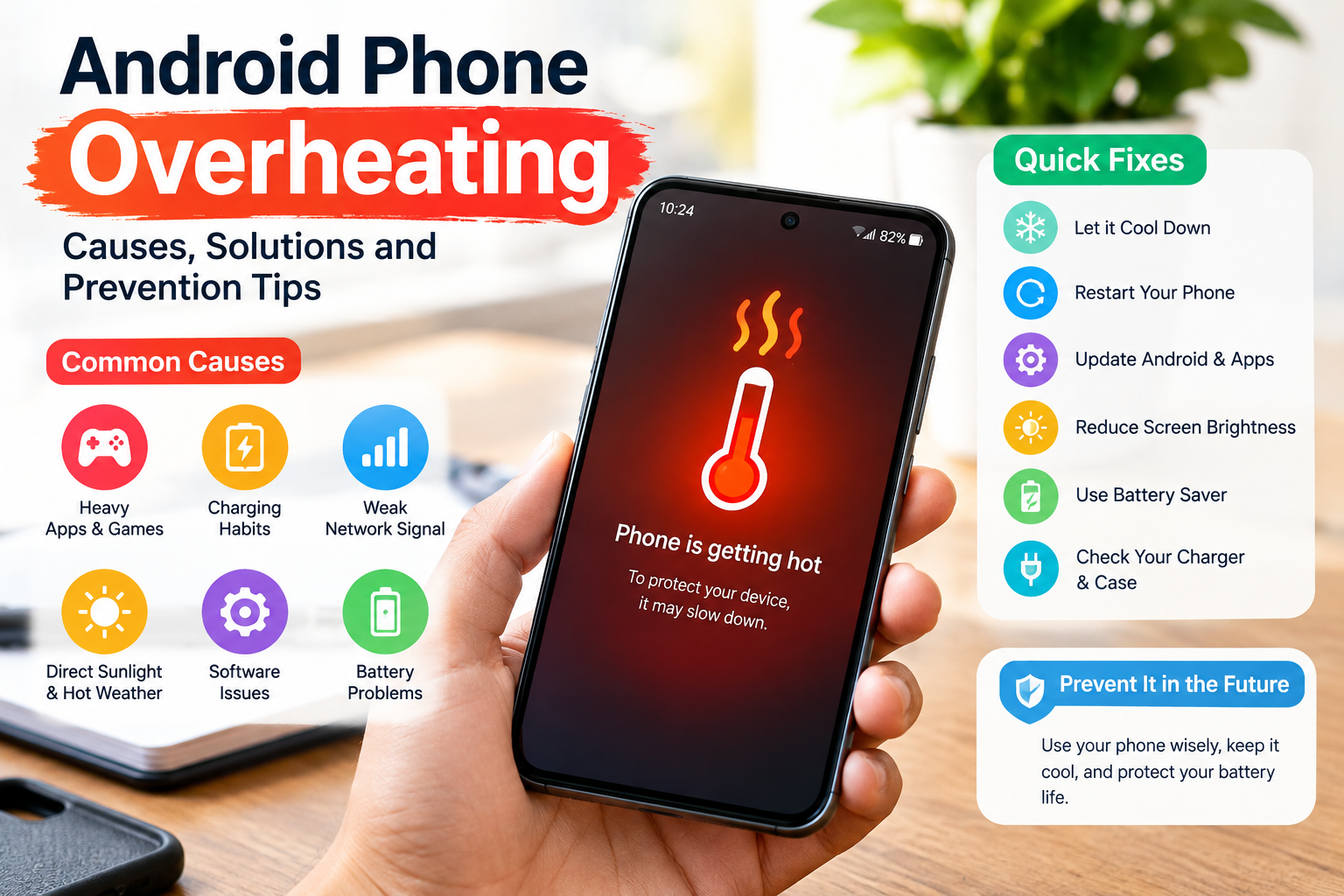
An Android phone getting warm during use is not unusual. Watching videos, playing games, charging the battery, or using the camera for a long time can increase its temperature. However, if your phone becomes too hot during normal use, drains its battery quickly, or starts closing apps automatically, it is worth investigating the problem.
Android phone overheating can happen for several reasons, including demanding apps, poor network signals, charging habits, software bugs, and battery problems. The good news is that many overheating issues can be reduced with a few simple changes.
In this guide, you will learn why Android phones get hot, how to cool them down safely, and what you can do to prevent the problem from returning.
Why Does an Android Phone Overheat?
Understanding the cause makes it easier to choose the right solution. A phone produces heat when its processor, battery, screen, and other components are working. The problem begins when the device generates more heat than it can safely release.
1. Running Too Many Apps
Some applications continue working in the background even when you are not actively using them. Navigation apps, social media platforms, cloud backups, and video-streaming services may consume processing power and battery energy.
When several demanding apps run together, your phone can become warm and its battery may drain faster than usual.
What you can do: Open your phone’s battery settings and review which applications consume the most power. Close unnecessary apps and restrict background activity for applications that do not need to run continuously.
2. Playing Games for Long Periods
Mobile games can place considerable pressure on a phone’s processor and graphics system. Games with high-quality graphics, online multiplayer features, and high frame rates may produce more heat than ordinary apps.
This is particularly noticeable on older phones or budget devices with limited cooling capacity.
What you can do: Reduce the graphics quality or frame rate in demanding games. Take breaks during long gaming sessions, especially in warm weather. If the device becomes uncomfortably hot, stop playing and allow it to cool.
3. Charging Habits and Faulty Accessories
Charging naturally generates some heat. However, a damaged cable, faulty adapter, poor-quality charger, or damaged charging port can create additional problems.
Using demanding apps while charging may also increase the temperature because the battery is receiving power while the processor is working hard.
What you can do: Use a compatible charger from the phone manufacturer or a reputable brand. Avoid gaming, video recording, or other demanding activities while charging. If you notice unusual heat around the charging port, stop charging and have the device checked.
4. Direct Sunlight and Hot Weather
Environmental temperature has a significant effect on mobile devices. Leaving a phone on a sunny dashboard, beside a window, or outdoors on a hot day can cause its temperature to rise quickly.
A protective case may also reduce heat dissipation in some circumstances, particularly during intensive use.
What you can do: Keep your phone in a shaded, ventilated place. If it becomes hot, stop demanding activities and remove the case if it is safe and practical to do so.
5. Weak Mobile Network Signals
When your phone struggles to maintain a mobile connection, it may use more power to communicate with nearby cell towers. This can happen in basements, remote locations, large buildings, or areas with poor coverage.
The additional power consumption can contribute to battery drain and heat.
What you can do: Move somewhere with stronger reception if possible. If you do not need mobile connectivity and there is no signal, airplane mode can reduce unnecessary network activity.
How to Fix Android Phone Overheating
If your device is already getting too hot, follow these steps to address the problem safely.
Step 1: Stop Heavy Activities
Start by closing demanding games, video editors, navigation apps, and other resource-intensive applications. Pause downloads, backups, and long video recordings.
Give the phone time to return to a normal temperature before using it heavily again.
Step 2: Check Battery Usage
Android usually provides a battery usage screen that helps identify applications consuming excessive power.
Open Settings, then look for Battery or Battery usage. The exact menu names vary by manufacturer and Android version.
If one app is using an unusually large amount of battery, update it, restrict its background activity, or uninstall it if you no longer need it. Do not disable essential system applications unless you understand their purpose.
Step 3: Restart Your Phone
A restart can resolve temporary software glitches and stop processes that are behaving unexpectedly.
Save your work, restart the device, and check whether it remains hot during light use. If the problem returns repeatedly, a restart alone is unlikely to be a complete solution.
Step 4: Update Android and Your Apps
Outdated software can sometimes cause excessive battery consumption or performance problems. Manufacturers and app developers occasionally release updates that fix these issues.
Check for available system updates in Settings and update your applications through Google Play.
Only install updates from trusted sources. Avoid downloading unknown apps that promise to cool your phone instantly.
Step 5: Reduce Screen Brightness
A bright display consumes more power, especially when you use your phone outdoors for long periods.
Lowering the brightness, enabling adaptive brightness, and shortening the screen timeout can help reduce power consumption.
Dark mode may also save energy on phones with OLED displays, although the benefit depends on how you use the device.
Step 6: Use Battery Saver When Needed
Battery Saver or a similar power-saving feature can reduce background activity and limit certain performance-intensive functions.
This option is useful when you are travelling, using mobile data for a long time, or trying to extend battery life. It is not a replacement for fixing a faulty battery or a serious overheating problem.
Step 7: Check Your Phone Case and Charging Setup
If the phone becomes warm during gaming or charging, try using it without a thick case once it has cooled down.
Inspect the charging cable and adapter for visible damage. Replace damaged accessories rather than continuing to use them.
Never insert metal objects into the charging port or attempt to repair a swollen battery yourself.
How to Prevent Android Phone Overheating in the Future
A few everyday habits can make a noticeable difference.
- Keep your phone out of direct sunlight, particularly inside parked cars.
- Avoid running demanding games while charging.
- Use compatible charging accessories from reputable manufacturers.
- Keep Android and your frequently used apps updated.
- Remove unnecessary apps that consume excessive background power.
- Download large files and install updates in a cool, ventilated environment.
- Avoid keeping your phone under pillows or blankets while charging.
- Give the device short breaks during long gaming or recording sessions.
- Monitor battery usage if you notice frequent heat or sudden battery drain.
You do not need to install a third-party phone cooler or task-killer app for ordinary temperature management. Many such apps provide little benefit, and some can introduce unwanted background activity.
Is Android Phone Overheating Dangerous?
Occasional warmth during charging, gaming, or video recording is generally normal. The important thing is to recognise when the temperature becomes excessive.
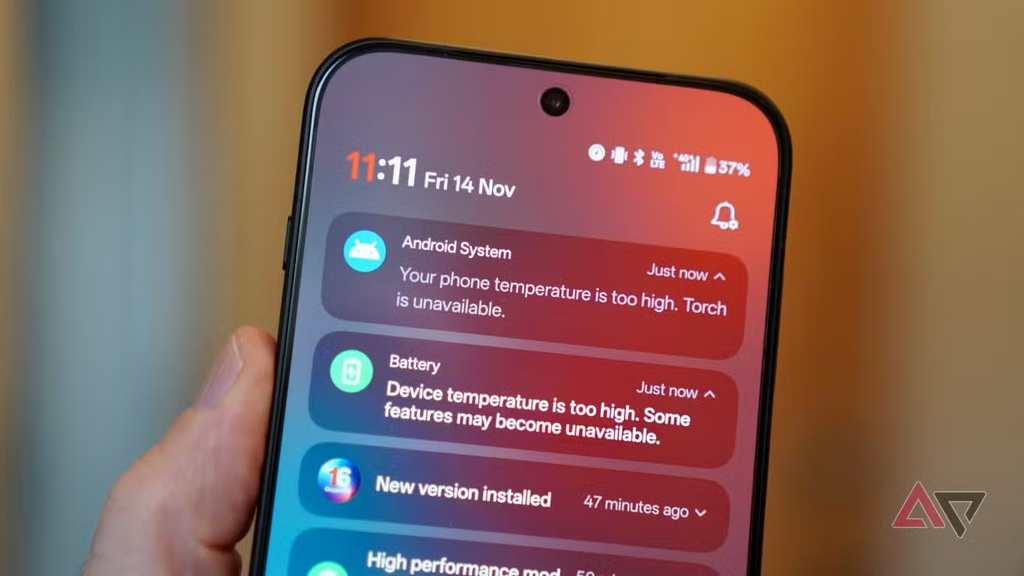
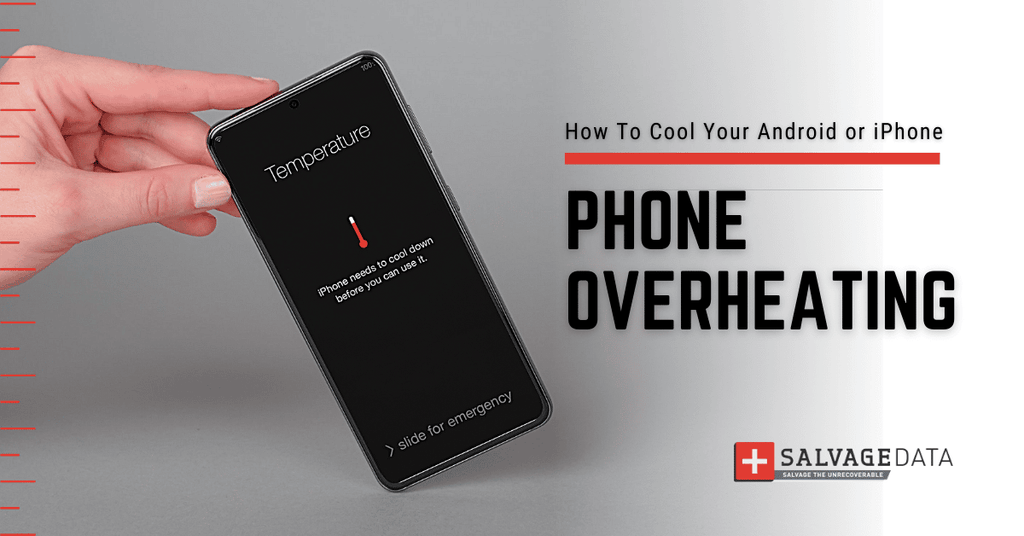
Your phone may display a temperature warning, reduce screen brightness, slow performance, pause charging, or close certain features to protect its components.
If a temperature warning appears, stop using demanding apps and disconnect the charger if it is safe to do so. Move the phone away from sunlight and let it cool naturally in a shaded, ventilated location.
Never put a hot phone in a refrigerator or freezer, and do not cool it with ice or water. Rapid temperature changes and condensation can damage electronic components.
Stop using and charging the device if the battery appears swollen, the phone has a burning smell, smoke appears, or the device becomes dangerously hot. Do not handle a smoking or actively overheating battery; move away and seek emergency assistance if necessary. Otherwise, arrange an inspection with a qualified repair professional.
When Should You Get Your Phone Repaired?
Sometimes the problem is not related to apps or everyday usage. An ageing battery, damaged charging port, internal hardware fault, or previous physical damage can cause recurring heat.
Consider professional inspection if:
- The phone becomes very hot while sitting idle.
- It repeatedly shuts down because of temperature warnings.
- The battery drains unusually quickly even after you close demanding apps.
- The charging port becomes excessively hot.
- The device has been exposed to water or suffered a serious drop.
- You notice battery swelling or other signs of physical damage.
If your phone is still under warranty, contact the manufacturer or an authorised service centre before attempting repairs yourself.
Final Thoughts
Android phone overheating does not always mean your device is damaged. Heavy gaming, background applications, weak network signals, hot weather, and charging habits can all contribute to a rise in temperature.
Start with simple steps: stop demanding activities, check battery usage, restart the phone, install trusted updates, and keep the device away from direct sunlight. These changes may solve many everyday overheating problems.
However, do not ignore repeated temperature warnings, unusual heat during idle use, or signs of battery damage. If basic troubleshooting does not help, professional inspection is the safest next step.
Taking care of your phone’s temperature can help maintain reliable performance, protect its battery, and make everyday use more comfortable.



1 Comment
Your comment is awaiting moderation.
The causes-and-fixes structure of this guide is really clear — separating the ‘why’ from the ‘how to fix it’ makes it easy to find the right step. I found the point about weak network signals especially useful, since a phone struggling for reception is a cause many people never consider. The practical fixes, like removing a thick case while charging and avoiding gaming during charging, are simple habits that can genuinely help. The warning signs for when to seek a repair are also a helpful safety net.
[…] such as apps, images, videos, audio, documents, and system files. The exact layout varies between Android versions and phone […]