
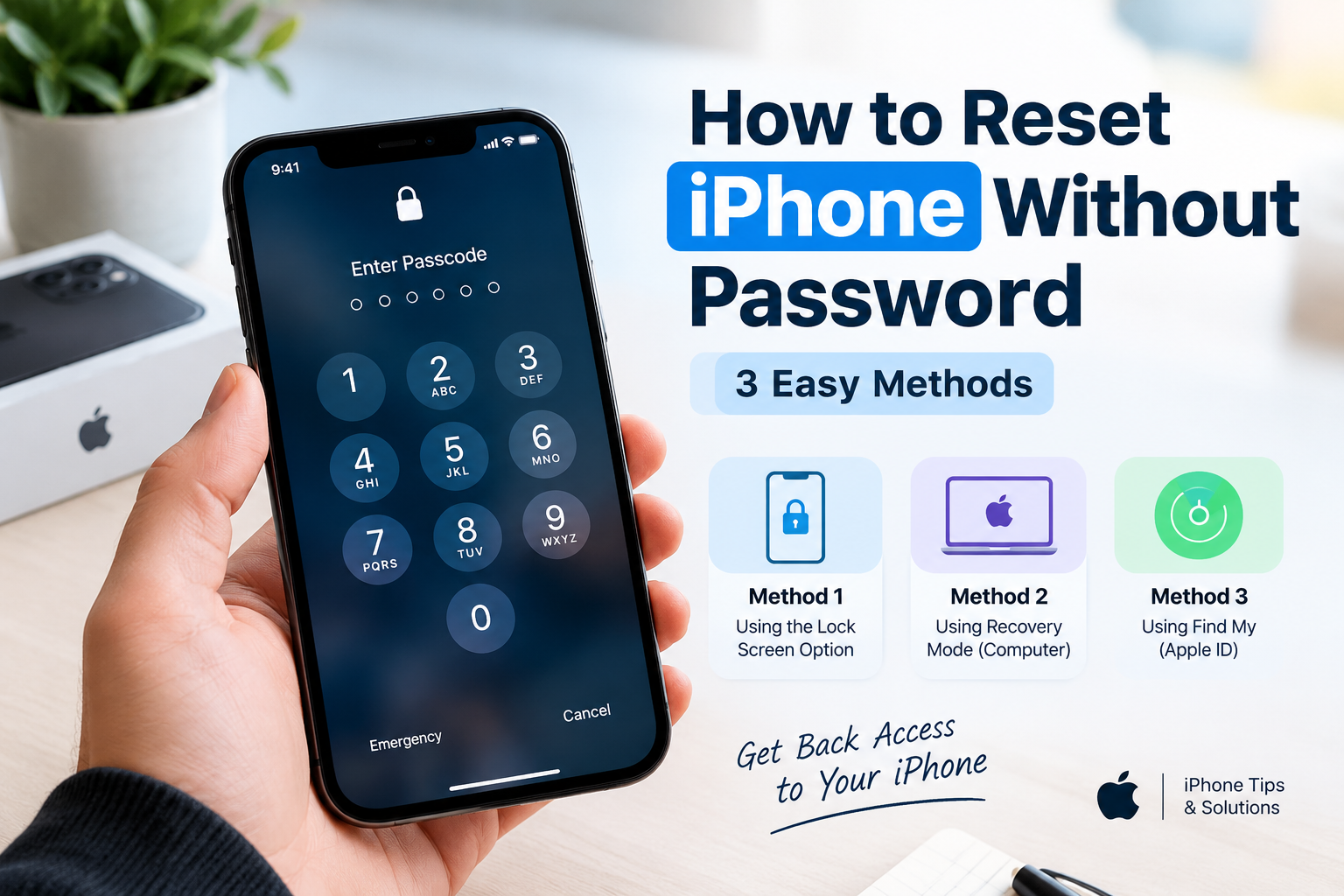
Introduction: How to Reset iPhone Without Password
Forgetting your iPhone passcode can be frustrating, especially when you need to access your phone urgently. You might have changed your passcode recently, entered the wrong code too many times, or picked up an older iPhone that you cannot unlock. The good news is that you can reset an iPhone without knowing its screen passcode by using Apple’s official recovery methods.
If you are searching for how to reset iPhone without password, this guide explains three practical methods you can try at home. You can use the security options on your iPhone, restore the device with a computer, or erase it remotely through Apple’s Find My service.
Before choosing a method, remember that resetting your iPhone usually erases the data stored on it. If you have an iCloud or computer backup, you may be able to restore your photos, contacts, apps, and other information afterward. You may also need your Apple Account password to reactivate the device.
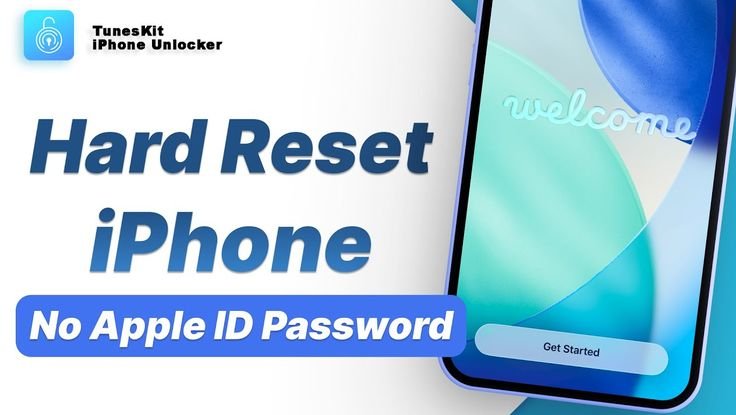
Slide: How to Reset iPhone Without Password — Key Points
How to Reset iPhone Without Password
- Method 1: Use the Forgot Passcode or Erase iPhone option when available.
- Method 2: Use recovery mode with a Mac or Windows computer.
- Method 3: Erase your iPhone remotely using Find My.
- Before resetting: Check whether you have a recent backup.
- After resetting: Restore your data and follow the activation instructions.
- Important: Your Apple Account password may still be required.
These methods use Apple’s built-in tools. The best option depends on your iPhone model, iOS version, and whether you can access your Apple Account or a computer.
Method 1: How to Reset iPhone Without Password Using the Lock Screen
Some iPhones running supported versions of iOS provide a reset option directly on the lock screen. This can be the simplest solution if you have forgotten your passcode and do not want to use a computer.
The exact wording and availability depend on your iOS version and device.
Step 1: Enter the Wrong Passcode
Turn on your iPhone and try entering your passcode. After enough unsuccessful attempts, the screen may display an iPhone Unavailable or Security Lockout message.
Avoid repeatedly guessing your passcode because this can increase the lockout time.
Step 2: Look for the Reset Option
If your iPhone supports this feature, look for an option such as Forgot Passcode? or Erase iPhone on the lock screen.
Tap the option and follow the instructions displayed on your device. If the option does not appear, you may need to use recovery mode or Find My instead.
Step 3: Enter Your Apple Account Details
Depending on your iOS version and the option shown, you may be asked to enter the password for the Apple Account associated with your iPhone.
This security step helps confirm that you are authorized to erase the device.
Step 4: Erase Your iPhone
Confirm that you want to erase the iPhone. The device will delete its local data and settings, then restart.
Once the process finishes, follow the setup instructions. If you have a backup, you may be able to restore your information.
Keep in mind: This method is not available on every iPhone or in every lockout situation. If you cannot see the reset option, move on to the next method.
Method 2: How to Reset iPhone Without Password Using a Computer
If the lock-screen option is unavailable, recovery mode is another official way to reset your iPhone. You will need a Mac or a Windows computer and a compatible USB cable.
Step 1: Prepare Your Computer
On a Mac, open Finder. On a Windows computer, use the Apple Devices app if available, or iTunes where appropriate.
Make sure your computer has the necessary software installed and that your internet connection is working. Your computer may need to download the iPhone software during the restore process.
Step 2: Turn Off Your iPhone
Disconnect the iPhone from the computer if it is already connected. Turn it off using the appropriate button combination for your model.
The shutdown process varies between iPhones with Face ID, iPhones with a Home button, and older models. If you are unsure, consult Apple’s official instructions for entering recovery mode.
Step 3: Put Your iPhone Into Recovery Mode
Connect the iPhone to your computer while holding the appropriate button for your model. Continue holding the button until the recovery-mode screen appears.
The button differs by model, so do not assume the same combination works on every iPhone.
Step 4: Choose Restore
Open Finder, Apple Devices, or iTunes and select your iPhone when it appears. Your computer should offer the option to update or restore the device.
Choose Restore when your goal is to erase the iPhone and remove the forgotten screen passcode. Follow the prompts and allow the process to finish.
If the software download takes longer than expected and the iPhone exits recovery mode, you may need to repeat the recovery-mode steps after the download completes.
Step 5: Set Up Your iPhone Again
After the restore, your iPhone will restart and display the setup screen. Follow the instructions to configure the device.
You may be asked for the Apple Account previously linked to the iPhone because of Activation Lock. A computer restore does not remove this ownership protection.
Method 3: How to Reset iPhone Without Password Using Find My
Find My can help you erase a lost or inaccessible iPhone remotely, provided the necessary requirements are met.
This option is useful if Find My was enabled before you lost access to the device and you can sign in to the Apple Account associated with it.
Step 1: Open Find My
Use another Apple device with the Find My app, or visit Apple’s official Find My website at iCloud.com/find in a web browser.
Sign in using the Apple Account connected to the iPhone you want to reset.
Step 2: Select Your iPhone
Open the device list and select the correct iPhone. Double-check the device details before proceeding, especially if several devices appear under your account.
Step 3: Choose Erase This Device
Select the option to erase the iPhone and follow the on-screen instructions. Depending on the device’s connection status, the erase may happen immediately or wait until the iPhone comes online.
Remember that this action deletes the device’s local data. Do not use it unless you understand the consequences.
Step 4: Complete the Setup Process
After the erase finishes, turn on the iPhone and follow the setup instructions. If a suitable backup exists, you may be able to recover your information.
If Find My was not enabled beforehand or you cannot access the associated account, this method may not work. Try recovery mode or use Apple’s account-recovery support if necessary.
What Happens to Your Data After Resetting an iPhone?
Before following any instructions about how to reset iPhone without password, it is important to understand what happens to your information.
A factory reset generally removes the data and settings stored on the iPhone. Photos, messages, downloaded files, and app data that exist only on the device may be lost.
However, erasing the phone does not automatically mean every copy of your information disappears. Data already synchronized with iCloud or another service may remain available online. A compatible backup may also let you restore much of your previous information.
If your data is important, check for an existing backup before erasing the device whenever possible. If you have no backup, assume that information stored only on the iPhone may not be recoverable.
Can You Reset an iPhone Without an Apple Account Password?
You can sometimes erase an iPhone without knowing its screen passcode, but that does not necessarily mean you can activate and use it afterward.
If Find My and Activation Lock are enabled, the iPhone may require the Apple Account previously associated with the device during setup. A factory reset does not bypass Activation Lock.
If you purchased a second-hand iPhone and see an Activation Lock screen, contact the previous owner and ask them to remove the device from their account. If the iPhone belongs to you but you have forgotten your account password, use Apple’s official account-recovery process.
Avoid websites or applications promising guaranteed Activation Lock removal. Use trusted recovery methods to protect your device and personal information.
How to Avoid Getting Locked Out of Your iPhone Again
A few simple habits can help prevent this problem in the future.
- Choose a memorable passcode: Use a code you can remember without making it easy for someone else to guess.
- Keep a backup: Enable iCloud Backup or make regular backups to a computer.
- Protect your Apple Account: Keep your recovery information up to date and use a strong password.
- Know your device details: Keep track of your iPhone model and the Apple Account associated with it.
- Update your software: Install supported iOS updates to benefit from security improvements and current recovery options.
These steps will not eliminate every possible problem, but they can make recovering from a forgotten passcode much easier.
Final Thoughts on How to Reset iPhone Without Password
Learning how to reset iPhone without password can save you time when you cannot unlock your device. The lock-screen reset option is convenient when available, recovery mode is useful when you have a computer, and Find My can help when remote erasure is supported.
Choose the method that fits your situation, and remember that a reset usually erases the iPhone’s local data. Check for a backup whenever possible, and make sure you can access the Apple Account associated with your device before beginning.
If none of these methods works, Apple’s official support resources can help you identify the appropriate recovery option for your model.
Found this guide helpful? Explore AutoBasic Labs for more practical iPhone tips, troubleshooting advice, and easy-to-follow mobile technology guides.





1 Comment
[…] An Android phone getting warm during use is not unusual. Watching videos, playing games, charging the battery, or using the camera for a long time can increase its temperature. However, if your phone becomes too hot during normal use, drains its battery quickly, or starts closing apps automatically, it is worth investigating the problem. […]